No products in the cart.
How to Reactivate Windows After Replacing Your Motherboard
Table of Contents
You just upgraded your motherboard, hit the power button, and… Windows is telling you it’s not activated. Don’t panic. This happens to almost everyone who swaps out their motherboard, and fixing it is usually straightforward.
Here’s why it happens and exactly how to reactivate Windows and get back to work.
Why Does Windows Deactivate After a Motherboard Change?
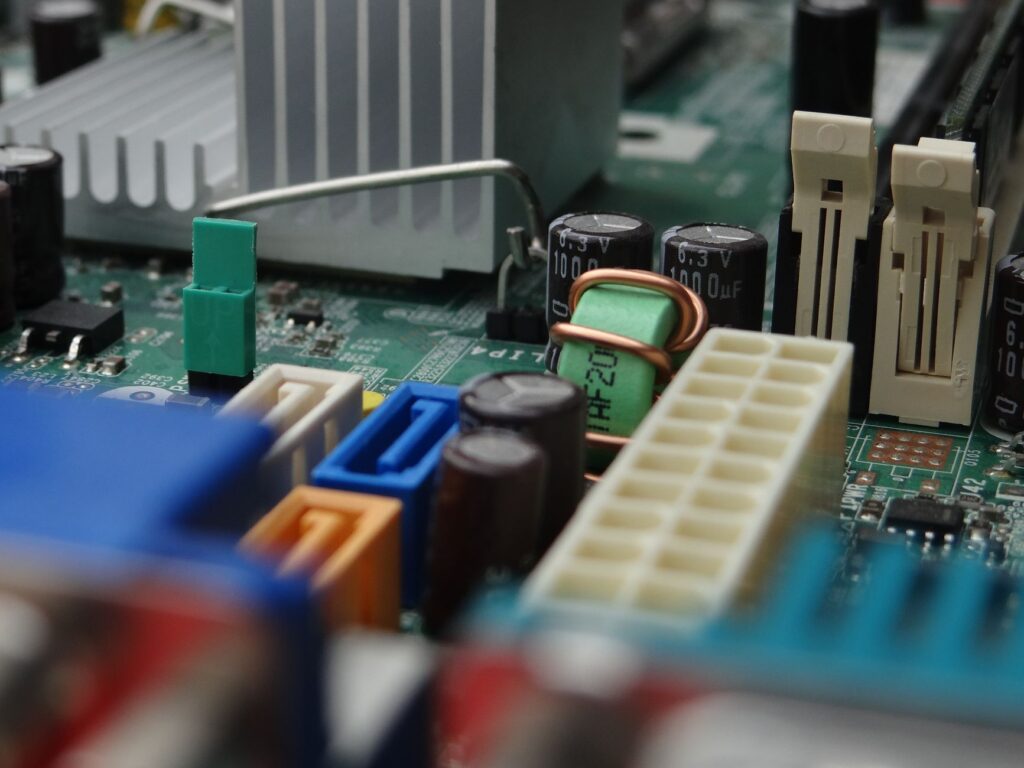
Windows ties your digital license to your hardware — specifically, your motherboard. Microsoft’s activation servers create a unique hardware ID based on several components, but the motherboard is the anchor. When you replace it, Windows sees your PC as an entirely new machine and assumes the license might be in use elsewhere.
This isn’t a bug; it’s a piracy prevention measure. The good news is that Microsoft provides legitimate ways to reactivate your copy of Windows on your “new” hardware.
Quick Answer
Quick Answer
Open Settings > System > Activation, click Troubleshoot, then select “I changed hardware on this device recently” and sign in with the Microsoft account linked to your license. Choose your device from the list, check “This is the device I’m using right now,” and click Activate. This Activation Troubleshooter method works for most users with retail licenses linked to a Microsoft account and completes in under two minutes.
Before You Do Anything: Check Your License Type
Your reactivation path depends on what type of Windows license you have:
- Retail license: You purchased Windows separately (boxed or downloaded). These licenses are transferable to new hardware.
- OEM license: Windows came pre-installed on a pre-built PC or laptop. These are legally tied to the original machine and technically non-transferable.
- Volume license: Your organization manages licenses through a volume licensing agreement.
Not sure which you have? Open Settings > System > Activation. Look for “Windows is activated with a digital license linked to your Microsoft account” (retail) or “Windows is activated with a digital license” (likely OEM).
Method 1: Reactivate Using Your Microsoft Account (Easiest)
If you linked your Windows license to your Microsoft account before the motherboard swap, reactivation takes about two minutes.
- Sign into Windows with the same Microsoft account you used before
- Go to Settings > System > Activation
- Click Troubleshoot
- Select I changed hardware on this device recently
- Sign in again if prompted
- You’ll see a list of devices linked to your account — select your current PC
- Check the box that says “This is the device I’m using right now”
- Click Activate
Windows should reactivate immediately. If your device doesn’t appear in the list, your license might not have been linked to your account, or you might have an OEM license.
Method 2: Reactivate with Your Product Key
If you have a 25-character product key (from a retail purchase, email receipt, or sticker on your old PC), you can enter it directly.
- Go to Settings > System > Activation
- Click Change product key
- Enter your 25-character key
- Click Next and follow the prompts
Windows will attempt to activate online. If successful, you’re done.
Method 3: Phone Activation (When Automated Methods Fail)
Sometimes the automated systems won’t cooperate, especially if you’ve made multiple hardware changes recently. Phone activation still works and often succeeds when online activation doesn’t.
- Press Windows + R to open Run
- Type slui 4 and press Enter
- Select your country or region
- Call the toll-free number displayed
- Follow the automated prompts — you’ll read out your Installation ID (the long string of numbers on screen)
- Enter the Confirmation ID you receive
The automated phone system handles most cases. If it can’t, you’ll be transferred to a real person who can manually authorize the activation.
What If You Have an OEM License?
Here’s the uncomfortable truth: OEM licenses are designed to stay with the original hardware. Officially, Microsoft’s position is that replacing the motherboard means you need a new license.
In practice, things aren’t always that rigid:
- If you’re replacing a failed motherboard with an identical model (warranty repair scenario), activation often works automatically
- Microsoft support agents sometimes grant exceptions, especially for repairs rather than upgrades
- The Activation Troubleshooter occasionally allows OEM licenses to transfer if they were linked to a Microsoft account
If you’re stuck with an OEM license that won’t reactivate, you have a few options:
- Contact Microsoft Support: Explain your situation. Results vary, but it costs nothing to ask.
- Purchase a new license: A legitimate Windows 11 Pro license isn’t free, but it’s a retail license you can transfer to future builds.
- Check with your PC manufacturer: Some offer license recovery or replacement options.
Troubleshooting Common Activation Errors
Error 0xC004F213 — “Windows reported that no product key was found”
This usually means Windows can’t read the key embedded in your UEFI/BIOS. Try entering your product key manually or use phone activation.
Error 0xC004C003 — “The activation server determined the specified product key has been blocked”
Your key may have been used on too many devices or flagged as compromised. Contact Microsoft Support directly.
Error 0xC004F034 — “The Software Licensing Service reported that the license could not be found”
Common after major hardware changes. Try the Activation Troubleshooter first, then phone activation.
“We can’t activate Windows on this device” with no error code
Wait 24 hours and try again. Sometimes Microsoft’s servers need time to update records after hardware changes.
Prevent This Headache Next Time
Before your next hardware upgrade:
- Link your license to your Microsoft account: Settings > Accounts > Your info, then Settings > System > Activation. If it says “Windows is activated with a digital license linked to your Microsoft account,” you’re set.
- Record your product key: Use a tool like ProduKey or check your purchase email/receipt. Store it somewhere safe.
- Consider retail licenses for builds you’ll upgrade: Yes, they cost more upfront. They’re also infinitely transferable and dramatically easier to deal with.
Need a Windows License?
If you need to purchase a new Windows license — whether you’re building fresh, upgrading from an OEM copy, or legitimizing an old installation — we can help. MCAKey is a Certified Microsoft Partner and Authorized Microsoft Reseller, which means you’re getting genuine licenses at competitive prices with actual support if something goes wrong.
Browse Windows licenses at MCAKey
Wrapping Up
Motherboard swaps triggering deactivation is annoying but normal. In most cases, you can reactivate Windows in a few minutes using the Activation Troubleshooter or your product key. When those don’t work, phone activation usually does.
The key is knowing your license type before you start. Retail licenses are almost always recoverable. OEM licenses are trickier but not always hopeless. And if all else fails, a new retail license solves the problem permanently and gives you flexibility for future upgrades.
Good luck with your new motherboard — and your reactivated Windows.
If you’re still running into Reactivate Windows After Replacing Your Motherboard. after trying the steps above, work through them once more in order — most cases resolve without needing anything more advanced.
Reactivate Windows After Replacing Your Motherboard. is frustrating, but it’s rarely a sign of serious hardware failure — in most cases it’s a driver or configuration issue like the ones covered here.
Keep this guide handy if Reactivate Windows After Replacing Your Motherboard. comes back after a Windows update, since driver-related regressions are the most common repeat cause.
A fresh driver install resolves Reactivate Windows After Replacing Your Motherboard. in the majority of cases we see, so start there before assuming it’s a hardware fault.
Reactivate Windows After Replacing Your Motherboard. that returns right after a Windows update almost always points back to a driver conflict, not new hardware failure.
Most people fixing Reactivate Windows After Replacing Your Motherboard. for the first time are done within ten minutes once they know which driver to update.
If none of the steps above resolve Reactivate Windows After Replacing Your Motherboard., check whether it only happens on battery power or only when plugged in — that narrows it down fast.
Reactivate Windows After Replacing Your Motherboard. caused by a driver issue is one of the most common support requests we see, and also one of the easiest to fix for good.
For more detail, see Microsoft’s own troubleshooting documentation.
For more Windows and Microsoft software activation guides, visit our Help Center.
If you’re still running into Reactivate Windows After Replacing Your Motherboard. after trying the steps above, work through them once more in order — most cases resolve without needing anything more advanced.
Reactivate Windows After Replacing Your Motherboard. is frustrating, but it’s rarely a sign of serious hardware failure — in most cases it’s a driver or configuration issue like the ones covered here.
Keep this guide handy if Reactivate Windows After Replacing Your Motherboard. comes back after a Windows update, since driver-related regressions are the most common repeat cause.
A fresh driver install resolves Reactivate Windows After Replacing Your Motherboard. in the majority of cases we see, so start there before assuming it’s a hardware fault.
Reactivate Windows After Replacing Your Motherboard. that returns right after a Windows update almost always points back to a driver conflict, not new hardware failure.
Most people fixing Reactivate Windows After Replacing Your Motherboard. for the first time are done within ten minutes once they know which driver to update.
Frequently Asked Questions
Will I lose my Windows license if I replace my motherboard?
No, you won’t permanently lose your license. Retail licenses can be reactivated on new hardware using the Activation Troubleshooter or by entering your product key. OEM licenses are trickier since they’re tied to the original hardware, but Microsoft Support sometimes grants exceptions for repairs.
How do I know if my Windows license is linked to my Microsoft account?
Go to Settings > System > Activation. If you see “Windows is activated with a digital license linked to your Microsoft account,” your license is linked and transferable. If it just says “Windows is activated with a digital license” without mentioning your account, you likely have an OEM license or haven’t linked it yet.
What does error code 0xC004F213 mean when activating Windows?
Error 0xC004F213 means Windows can’t find a product key embedded in your UEFI/BIOS, which commonly happens after motherboard replacements. Enter your 25-character product key manually through Settings > System > Activation > Change product key, or use phone activation by running slui 4.
Can I reactivate Windows without an internet connection?
Yes, use phone activation. Press Windows + R, type slui 4, select your country, and call the toll-free number displayed. You’ll read your Installation ID to an automated system (or a support agent) and receive a Confirmation ID to enter on your PC.
Save on your order — use code FIXIT10
Limited-time, limited-use offer. Redeem it before it's gone.