


No products in the cart.

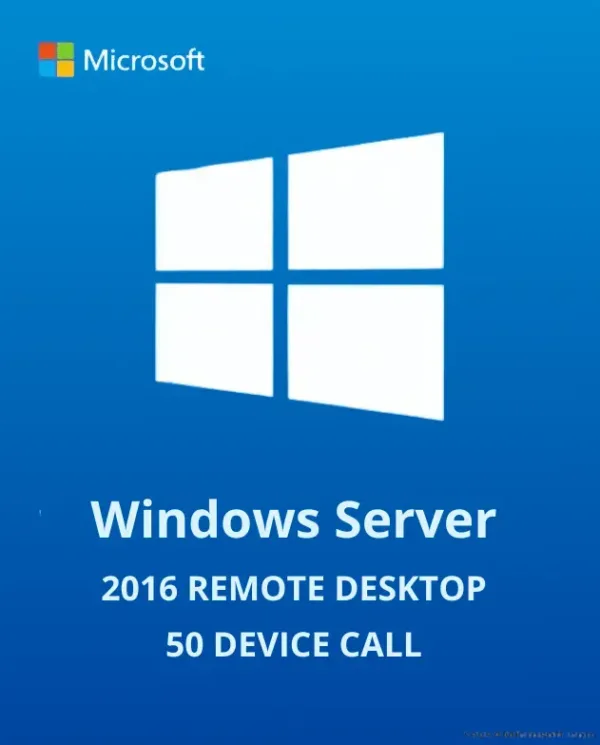
Windows Server 2016 RDS Device CALs — License 50 More Devices for Remote Desktop
Windows Server 2016 Remote Desktop Services 50 Device CALs is a lifetime Volume license key that adds Remote Desktop Services licensing for 50 devices to an existing Windows Server 2016 deployment, delivered by email. It’s for IT admins and system administrators who already run Windows Server 2016 with the Remote Desktop Session Host role and need to license more hardware connecting to it — branch office terminals, shared workstations, kiosks, or a growing pool of thin clients. MCAKey is a Certified Microsoft Partner, and this key ships through Microsoft’s volume licensing channel — a genuine CAL pack, not a workaround.
Device CALs license the hardware itself rather than the person using it. If several employees share the same terminal, workstation, or kiosk across shifts, a single Device CAL covers all of them — unlike a Remote Desktop Services User CAL, which licenses one named person across however many devices they log in from. For call centers, shared lab machines, or any site where devices outnumber unique regular users, Device CALs are usually the simpler and cheaper option to manage.
- License TypeVolume
- ActivationOnline Activation
- Devices50 Devices
- PlatformWindows Server 2016
- DeliveryEmail, within minutes
Installing this pack is done through the RD Licensing Manager console already built into Windows Server 2016 — activate the license server online, then point it at this key to add 50 Device CALs to the pool. From there, every device that opens a session against your RD Session Host is checked against the pool automatically; nothing needs to be installed on the client devices themselves.
For IT departments, this keeps a Remote Desktop deployment in compliance without over-buying: you license exactly the device count you’re running, and can add more Device CAL packs later as headcount grows. It’s the same licensing model used in call centers, retail back-offices, and any environment where remote sessions are opened from shared or unmanaged hardware rather than personal laptops.
What Is Included in Windows Server 2016 Remote Desktop Services 50 Device CALs
What this Device CAL pack actually licenses on your Windows Server 2016 deployment.
Remote Desktop Services Access
Licenses devices to open Remote Desktop sessions against your Windows Server 2016 RD Session Host. Use it when more hardware needs to connect to the same shared applications and desktops hosted on your server.
50-Device Capacity
This key adds exactly 50 Device CALs to your RD Licensing pool, matching the size of a mid-sized branch office or department. Add another pack later if the device count grows past 50.
RD Licensing Manager Activation
The license key is entered into the RD Licensing Manager console already running on your server, which activates online with Microsoft’s licensing clearinghouse. There’s no separate installer — it’s a few clicks inside a tool you already have.
Session-Based and Virtual Desktop Support
Covers devices connecting to either session-based desktops on the RD Session Host or virtual-machine-based desktops through RD Virtualization Host. Use it whether your deployment is a classic shared session host or a VDI-style setup.
Managed and Unmanaged Device Access
CALs apply whether the connecting device is domain-joined and centrally managed or a personal, unmanaged machine. This matters for BYOD setups where employees connect from their own laptops alongside company hardware.
Access from the Corporate Network or the Internet
Licensed devices can reach datacenter apps hosted on your RD Session Host from inside the corporate network or remotely over the internet, typically through RD Gateway. Use it for hybrid teams that need the same desktop and apps whether they’re in the office or working remotely.
Perpetual Volume License
This is a one-time purchase with no recurring subscription — the 50 Device CALs stay valid for as long as you run this RD deployment. Buy it once and it’s yours, unlike a subscription-based licensing add-on.
Instant Key Delivery by Email
The license key lands in your inbox within minutes of checkout, ready to enter into RD Licensing Manager the same day. No waiting on physical media or manual provisioning.
Windows Server 2016 RDS CALs — Licensing That Matches How You Actually Deploy
How Device CALs fit into a real Remote Desktop Services deployment.
How Device CALs Work for Windows Server 2016
Each Device CAL is tied to a piece of hardware, not a person. Once a device receives a CAL from the RD Licensing server, it can open Remote Desktop sessions indefinitely — regardless of who’s logged into it that day. That makes device-based licensing the natural fit for shared terminals, retail kiosks, and lab machines where the hardware stays put but the people using it rotate.
The RD Licensing server tracks CAL issuance automatically once it’s activated, so there’s no manual per-device paperwork to keep — the 50 CALs in this pack are simply drawn from as new devices connect.
Device CAL vs. User CAL — Which One Do You Need
A Remote Desktop Services User CAL licenses a named person and follows them across every device they use to connect — a laptop, a home PC, a tablet. A Device CAL does the opposite: it licenses one piece of hardware no matter how many different people use it.
If you have more devices than regular users — shared workstations, call center seats, multi-shift kiosks — Device CALs cost less to manage. If your users regularly switch between several personal devices, User CALs are usually the better fit instead.
Licensing Remote Desktop Session Hosts
The RD Session Host role is what actually hosts the shared desktops and applications your devices connect to. Every time a device opens a session, the Session Host checks with your RD Licensing server for an available CAL before letting the connection through.
This 50-device pack keeps that check passing for up to 50 unique devices at a time, so sessions aren’t interrupted once your server’s built-in licensing grace period runs out.
This CAL Pack Doesn’t Replace Your Windows Server 2016 License
This key only adds Remote Desktop Services licensing — it does not activate Windows Server 2016 itself. You need a separate, already-activated Windows Server 2016 installation with the RD Session Host role running before these CALs do anything.
If you haven’t licensed the underlying operating system yet, pick up a standalone key like our Windows Server 2016 Datacenter Activation Key first, then apply this CAL pack on top of it.
Windows Server 2016 Remote Desktop Services 50 Device CALs
What is included with your purchase.
Genuine RDS CAL License Key by Email
Your 50 Device CAL key arrives by email within minutes of purchase — no physical media, no waiting. Just the key, ready to enter into RD Licensing Manager.
Lifetime Volume License — Pay Once
This is a Volume-licensed CAL pack you buy once. There’s no subscription, renewal, or expiry date attached to the 50 device slots.
Online Activation Through RD Licensing Manager
Your RD Licensing server activates online with Microsoft’s clearinghouse the first time you install the key, a process that typically takes a few minutes. From then on it issues CALs automatically as devices connect.
Works With Session-Based and Virtual Desktop Deployments
Compatible with both classic RD Session Host deployments and RD Virtualization Host / VDI setups. Whichever model your Windows Server 2016 environment uses, the same 50 Device CALs apply.
Licensed for 50 Devices
This pack covers exactly 50 devices connecting to your RD Session Host. If you outgrow that count, additional 50-device or 50-user packs are available separately.
Activation Support Included
If you get stuck activating the RD Licensing server or installing the key, reach our support team over live chat, WhatsApp, or email and we’ll walk you through it.
Requires an existing Windows Server 2016 installation with the Remote Desktop Session Host role already installed and an active RD Licensing server to apply the key to. This pack licenses 50 devices and does not activate Windows Server 2016 itself — the server operating system needs its own separate license.
Windows Server 2016 RDS Device CALs — Common Questions
What buyers ask before licensing more devices for Remote Desktop Services.
Does this key activate Windows Server 2016?
No. This key only adds 50 Remote Desktop Services Device CALs to an already-activated Windows Server 2016 installation — it cannot be used to activate the server operating system itself.
What’s the difference between a Device CAL and a User CAL?
A Device CAL licenses one piece of hardware no matter who uses it; a User CAL licenses one named person across every device they connect from. This pack is Device CALs — pick User CALs instead if your team regularly switches between several personal devices.
Will these CALs work with Windows Server 2019 or 2022?
No. Microsoft’s RDS CAL versioning rule requires the CAL to be the same version as, or newer than, the server it’s licensing — a Windows Server 2016 CAL only works with a Windows Server 2016 RD Session Host. If you’re running a newer server, look at our Windows Server 2019 Remote Desktop Services 50 CALs instead.
How is the license key delivered and installed?
The key is emailed to you within minutes of checkout. You install it through the RD Licensing Manager console on your Windows Server 2016 machine, which activates online with Microsoft and adds the 50 devices to your licensing pool.
Want more ?
![Windows Server 2022 Standard Activation Key [ Online ]](https://mcakey.com/wp-content/uploads/2024/07/Windows-Server-2022-Standard-2-600x745.webp)
![Windows Server 2016 Datacenter Activation Key [ Online ]](https://mcakey.com/wp-content/uploads/2022/08/Windows-Server-2016-DATACENTER-600x745.webp)
 Windows Server 2016 Remote Des...
 $12.99

Alfred (verified owner) –
Amazing digital product, delivered in seconds.
Wilber (verified owner) –
The product was ready to use within moments, no issues at all.
Callie (verified owner) –
I received the product instantly, great service.
Daniella (verified owner) –
The product was delivered almost instantly, great service.
Ellie (verified owner) –
Instant access to a fantastic digital product, highly recommend.
Mohamed (verified owner) –
Quick and easy access to a top-quality digital product.
Bernie (verified owner) –
The product was delivered via email right away, great service.
Isom (verified owner) –
This is the coolest thing I’ve found on here! Will keep using your products in the future!
Edna (verified owner) –
Fast, reliable, and high-quality digital product.
Quentin (verified owner) –
Excellent digital product, delivered almost instantly.
Zetta (verified owner) –
The fastest digital download I’ve ever experienced, great service.
Lexi (verified owner) –
The delivery was lightning fast, highly recommend this store.
Colt (verified owner) –
The product was delivered right away, fantastic service.
Heather (verified owner) –
Fast and smooth download, excellent quality digital product.
Devyn (verified owner) –
The digital file was ready to use immediately, very satisfied.
Brenna (verified owner) –
Fast delivery and excellent quality digital product, very happy with my purchase.
Winona (verified owner) –
The product was ready to use within moments, very convenient.
Sim (verified owner) –
I like this item and also the customer service of them.
Lydia (verified owner) –
Instant download and top-quality digital product.
Garrick (verified owner) –
Good response from the support.
Clemmie (verified owner) –
The product was delivered almost immediately, very convenient.
Jasmin (verified owner) –
Wished I had found this sooner, it took me a lot of money and time until I found my dream product here!